Wi-Fi Deployment
The following information are destined to be used in every case and for all the types of shows. However, specific implantations may introduce slight variations and extensions.
Please make sure to validate your Wi-Fi implantation layout by the support team
Antenna
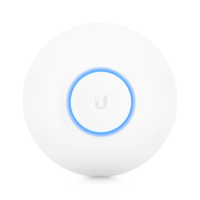
The antenna with the best performance currently used is the Unifi AP-HD. This PoE antenna requires an infrastructure enabling its alimentation through its Ethernet port connected to a PoE enabled switch. To ensure the best Wi-Fi performances possible please make sure to:
- Place antennas as high as possible.
- Use RJ45s cable rated Cat. 6 as a minimum.
- Interconnect the Unifi Switch located in the DCC rack to the MAIN port of the antenna. Never use the Secondary port.
- Orient the antenna towards the zone that needs to be covered by Wi-Fi.
- Ensure that enough antennas are deployed, usually 250 concurrent drones is upper limit.
- No drone has no antenna within 300m around it at any point during the flight.
- Respect a minimum distance in-between antennas of 1m.
Controller Configuration
To configure the network system, go to the controller interface that can be reached at https://10.0.0.100:8443 (a warning message may appear, ignore it). Once connected, navigate to the Settings menu located on the left sidebar.
Site
- Choose the country in which the operation is taking place.
- Choose the right time zone.
- Make sure that the Automatic firmware update option is deactivated.
- Make sure that the Outdoor Mode option is deactivated.
- Make sure that the Activate SSH authentication is activated.
Networks
- Make sure that the SSID is correct. This one should be OFFICE_NET for mono-network flights, make sure that it is activated.
- Make sure that only the 5GHz frequency is used. 2.4GHz is not used and should be deactivated.
- Make sure that this network is emitted by the right antennas.
- Every other option found here should be deactivated.
Antenna Configuration
Net is the configuration of the antennas themselves. Go to the Equipment page using the left sidebar then click on the antenna that needs tweaking.
To update the configuration of an antenna, it needs to be adopted first. If that's not the case, please refer to Equipment Adoption.
Selecting an antenna will bring up the configuration panel on the right of the interface. Continue by going to the Settings sub-menu. For every antenna, the following elements have to be checked:
- In the General tab:
- Give the antenna a name that is descriptive and easy to remember (Flyzone 1 for example)
- Make sure that the Outdoor Mode option is deactivated
- In the Radios > 5GHz Radio tab:
- Canal width should always be set to VHT20
- Canal should be the canal chosen after following the Wi-Fi Channels recommendations.
- Transmit Power should always be set to High
- Check that the Minimum RSSI and the Cell Size Tuning options are deactivated
- In the Band Steering tab:
- Check that this option is deactivated
Validate the changes and persist them using the Queue change and Apply changes respectively.
For simple flights (.ie one Startzone and one Flyzone antenna), the settings have to be the exact same for all the antennas.