Multi-networks systems
When the number of drones becomes important (>250 drones), the utilization of a multi-networks system is recommended. To do so, some configurations of the Unifi Controller are necessary as well as having a compatible bundle. The method of creating such a bundle is available on TODO BUNDLE TWEAKER
General considerations
It is recommended to limit the number of times the drones will have to roam from an antenna to another.
Everytime the drone roams, it needs to first disconnect itself from the Wi-Fi antenna used to then reconnect to another.
This process can be lead to a momentary loss of signal in-between the DCC and the drone (NO_SOCKET on the DCC), leading to a WIFI_LOST if the roaming takes too long.
Recent works have been made to limit such cases, but if the drones are flying in a noisy electromagnetic environment and/or if the antennas placements aren't optimal these problems can arise.
Settings
After setting the required SSIDs in the bundle using the TODO BUNDLE TWEAKER, the Unifi Controller still needs to be configured to match them.
Go to the Settings page then Wi-Fi
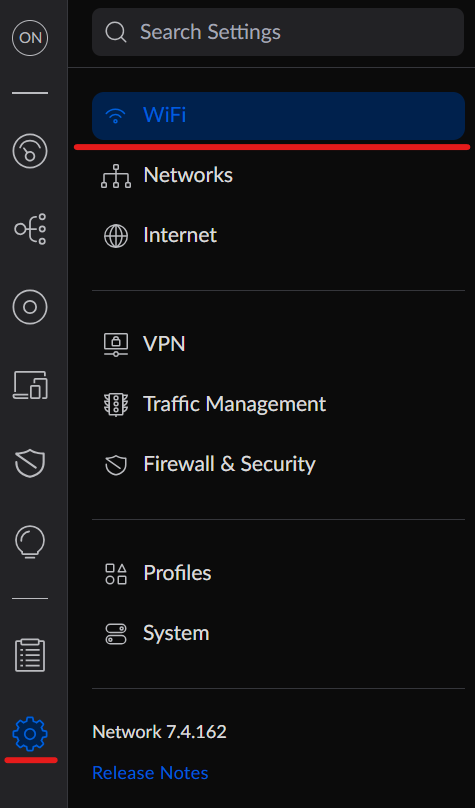
Check that every SSID present in the bundle is present here and that each of them is activated.

By default, all connected antennas will broadcast every SSID created. This is not recommended. Create a new AP group, giving it a simple descriptive name.
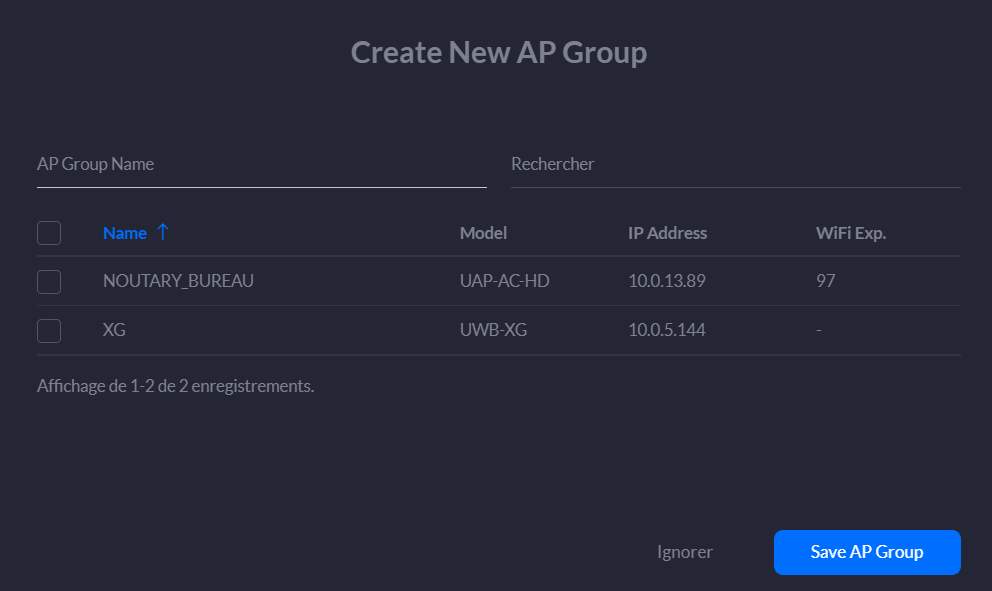
For example, if three SSIDs are needed (OFFICE_NET, OFFICE_NET1 and OFFICE_NET2), two groups should be present (Group 1 and Group 2).
Each group should broadcast OFFICE_NET as well as one specific SSID (OFFICE_NET1 or OFFICE_NET2 in this case).
All the antennas of a same group should be using the same 5GHz channel !
Configuration example
The following configuration example is the usual configuration used to perform shows of 500 drones.
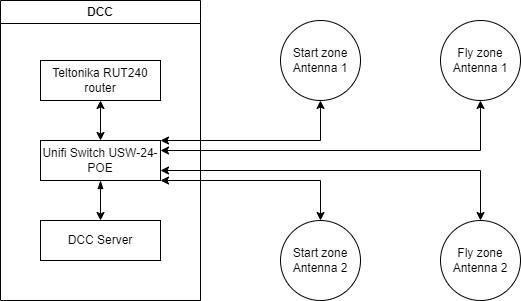
On this diagram, we can see that 4 antennas are connected to system, divided into two different groups:
- Group 1 including Start zone 1 and Fly zone 1
- Group 2 including Start zone 2 and Fly zone 2
Change the configuration of which SSIDs are broadcast by which group to match the following:
| Network | Group |
|---|---|
OFFICE_NET | All APs |
OFFICE_NET1 | Group 1 |
OFFICE_NET2 | Group 2 |
In this example, and after performing a radio scan (Wi-Fi Scan) we selected (Wi-Fi Channels) the channels 36 and 40, leading to the following configuration:
| Antenna | 5GHz channel |
|---|---|
| Start zone 1 | 36 |
| Fly zone 1 | 36 |
| Start zone 2 | 40 |
| Fly zone 2 | 40 |
Please note that every configuration detailed on the Wi-Fi Deployment also applies here. The only difference is that two channels need to be selected instead of one.